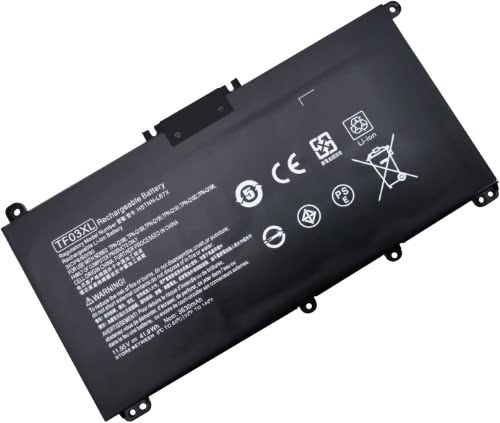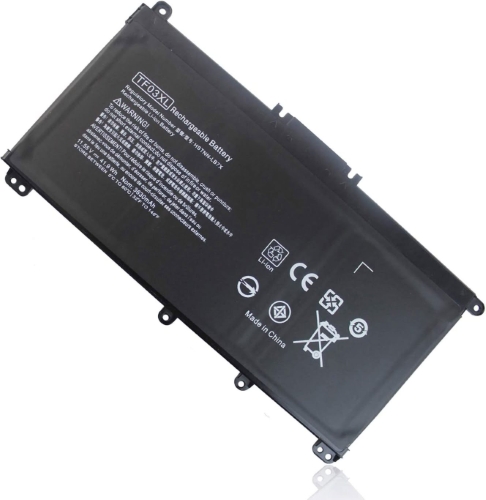
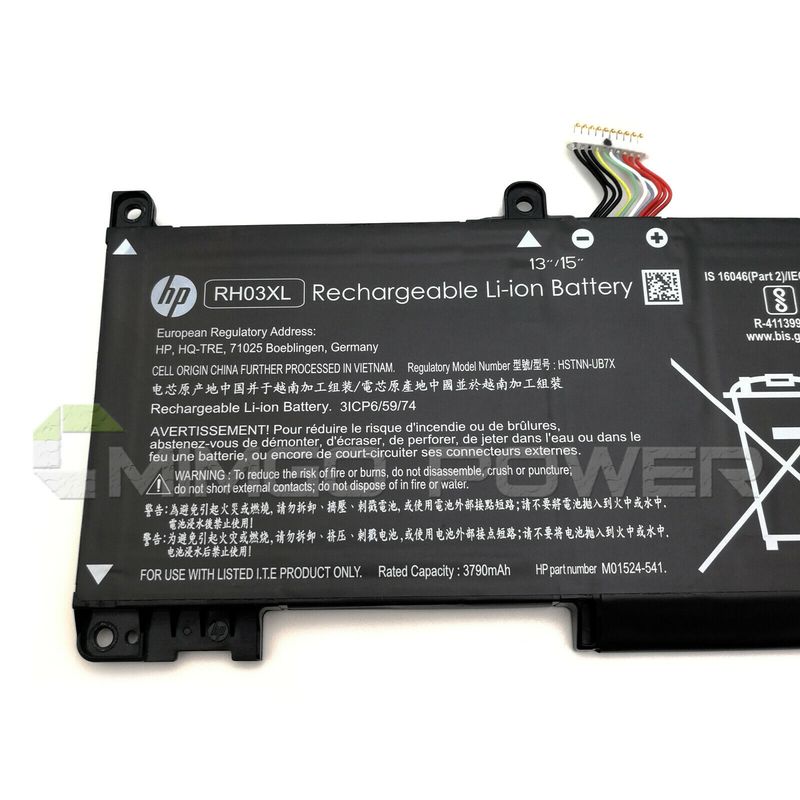
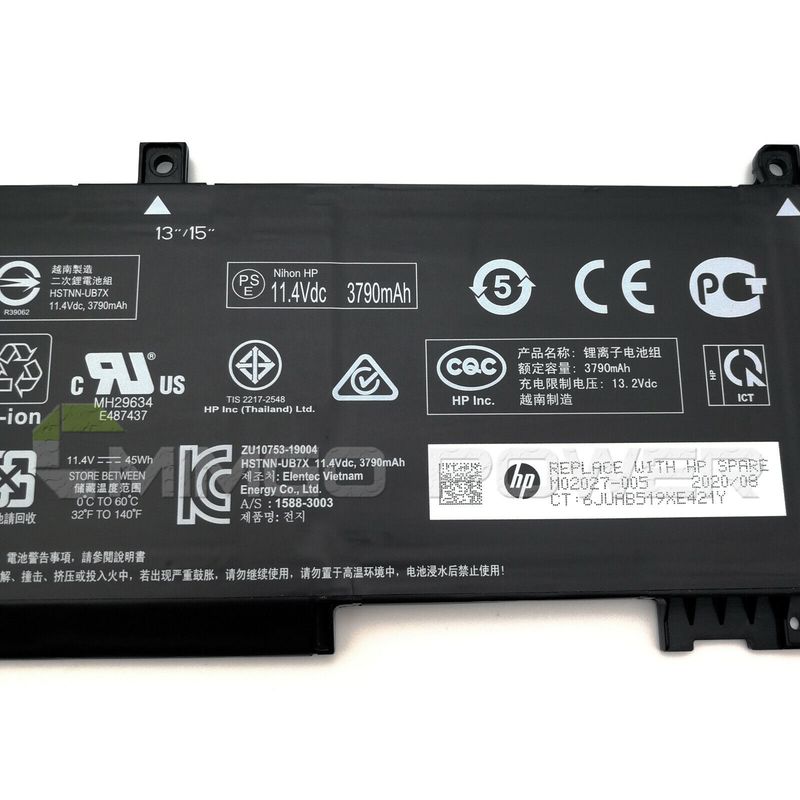
920046-121, 920046-421 ersatz Laptop Akku fuer HP 14-bp00, 14-bp001ng, 11,55v, 4...
€38,70

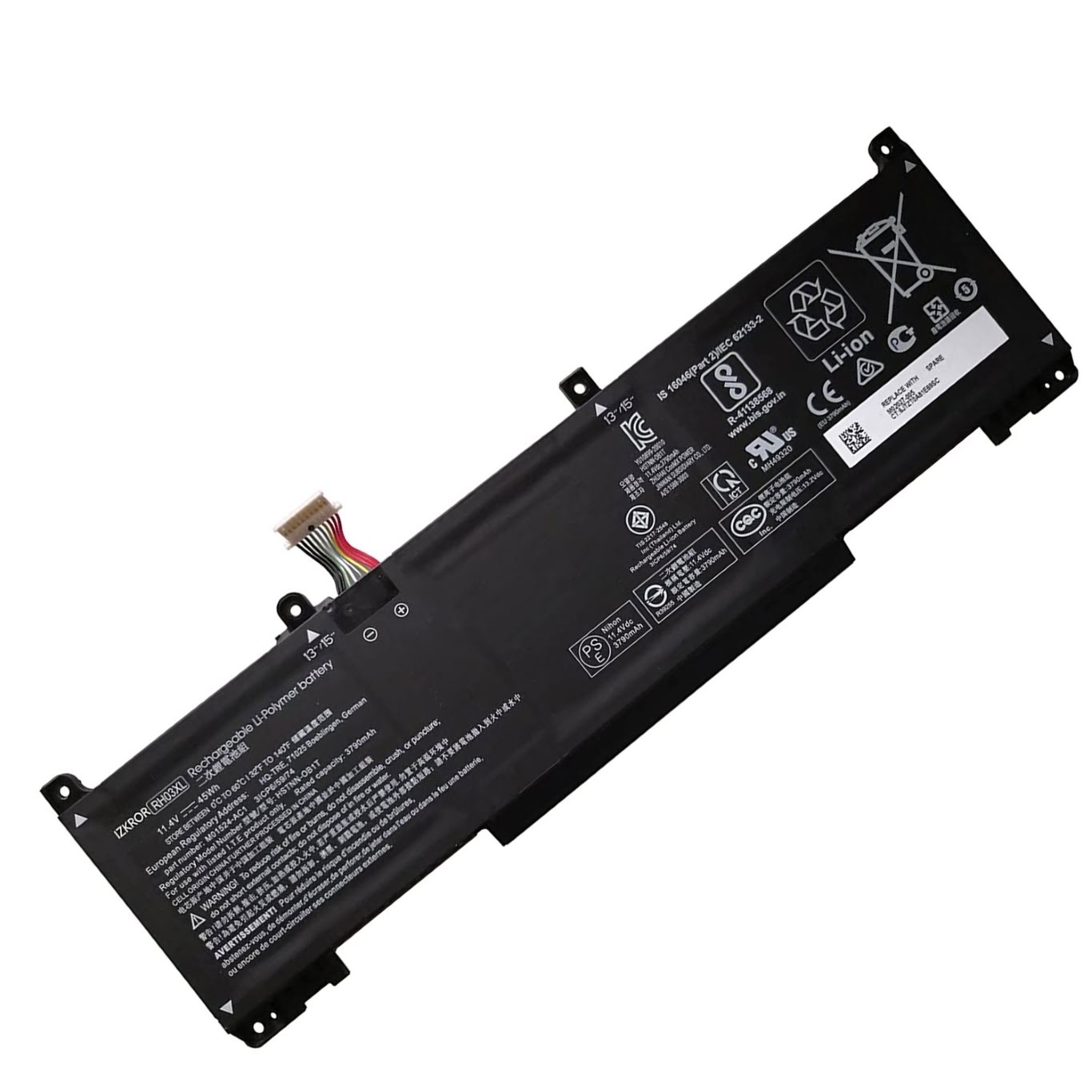
Zoom bei Mausbewegung, Bild dient nur als Referenz.


Technische Daten
Li-Ion-Laptop-Akkus mit 7,2 V und 7,4 V werden häufig verwendet.
Li-Ion-Laptop-Akkus mit 10,8 V und 11,1 V werden häufig verwendet.
Li-Ion-Laptop-Akkus mit 14,4 V und 14,8 V werden häufig verwendet.
7,2 V (= 7,4 V), 10,8 V (= 11,1 V), 14,4 V (= 14,8 V) Batterien haben unterschiedliche Spannungen und sind nicht kompatibel. Bitte wählen Sie die richtige Batterie (Spannung).
Mit diesem Akku erwerben Sie ein Qualitätsprodukt, welches ausschließlich mit hochwertigen Zellen namhafter Hersteller wie Samsung, Sanyo und Panasonic bestückt ist. Unsere Akkus werden nach den höchsten Qualitätsstandards hergestellt und zeichnen sich durch eine hohe Langlebigkeit aus. Des Weiteren besitzen unsere Akkus eine hohe Zyklenfestigkeit, welche eine hohe Anzahl an Lade- und Entladezyklen gewährleistet.
Merkmale unserer Akkus:
- problemloses Laden mit dem original oder baugleichen Ladegerät / Netzteil
- Überhitzungs-, Überlade- und Kurzschlussschutz wie im Originalakku
- kein Memoryeffekt durch Hochleistungszellen
- 100 % Passgenauigkeit zum Originalakku
- geringe Selbstentladung
Tips
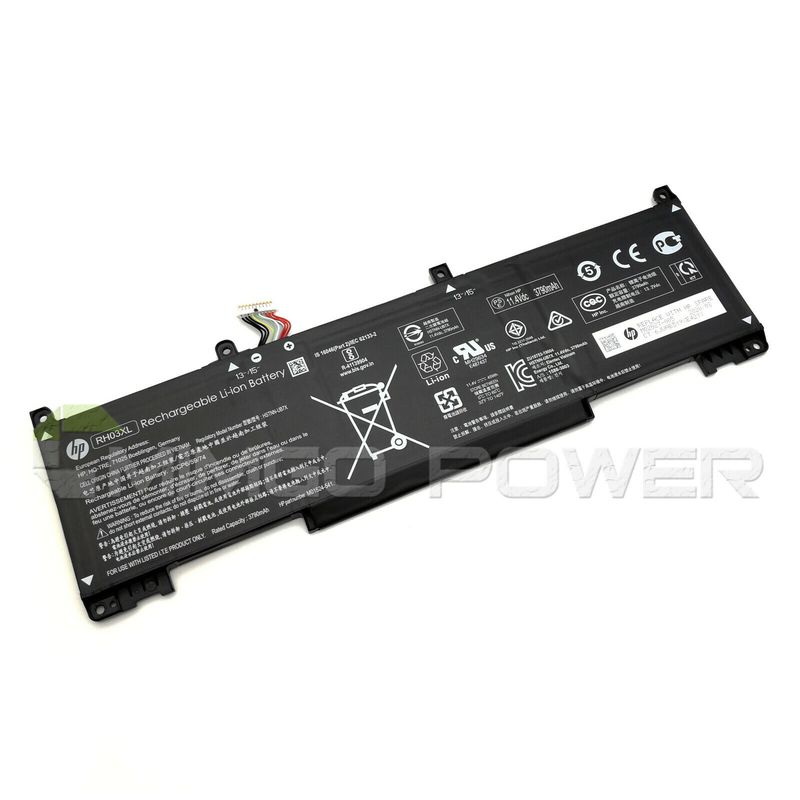
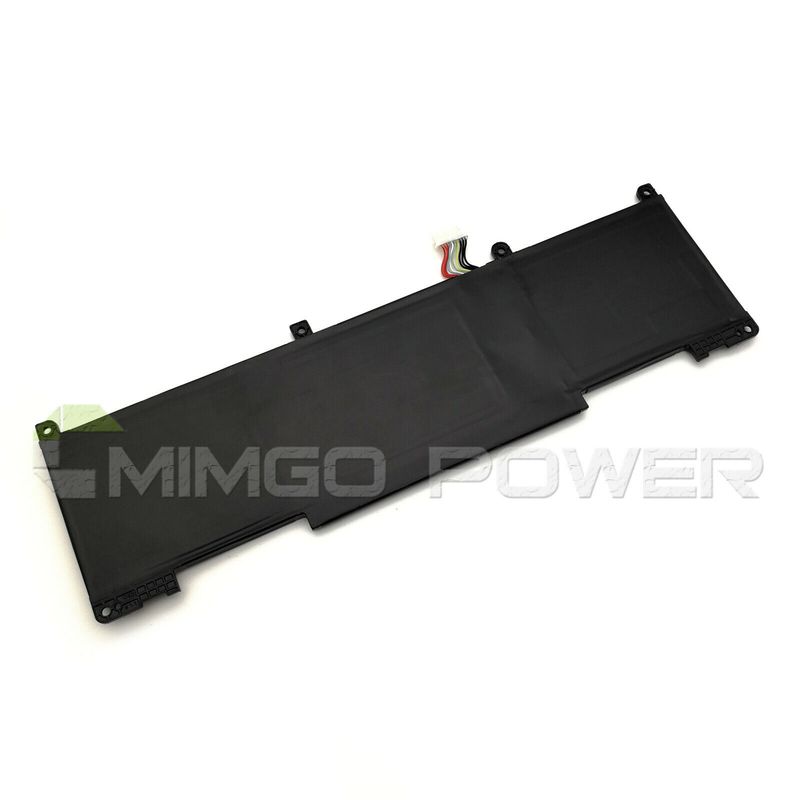
Schauen Sie sich vor dem Kauf am besten unseren Akku aus den obigen Bildern an und prüfen Sie, ob er mit Ihrem Original übereinstimmt. Bitte stellen Sie sicher, dass Sie den richtigen Akku auswählen, um eine Fehlbestellung zu vermeiden.
Bitte bestätigen Sie, dass Ihr Maschinenmodell, die Spannung oder die Teilenummer in unserer Beschreibung kompatibel sind. Außerdem können Sie einen Vergleich zwischen Ihrer Originalbatterie und unserem Artikel anstellen. Bei gleichem Aussehen (insbesondere der Anschlussposition) und gleicher Batteriespannung ist dies kein Problem Zum Austausch mit Ihrer Maschine, solange Ihr Modell oder Ihre Teilenummer in unserer Beschreibung kompatibel ist.
 Produkthandbuch - Bedienungsanleitung
Kompatible HP Teilenummer
Bitte verwenden Sie die Tastenkombination [Strg + F], um unten Teilenummern / Modellnummern schnell zu finden.
Kompatible HP Laptop Modelle
Wenn Ihr Maschinenmodell hier nicht aufgeführt ist, kontaktieren Sie uns bitte vor dem Kauf!
Haftungsausschluss:
www.laptop-battery.net mit keinem der aufgeführten Originalhersteller verbunden. Alle eingetragenen Marken oder Modellnamen oben aufgeführt sind, als Identifikationsnummer nur zeigen Kompatibilität.
Versand


| Ort | Versandkosten | Voraussichtliche Lieferzeit |
|---|---|---|
| China | €0 | 15 - 18 Werktage |
Wenn Sie einen Rabatt erhalten möchten, können Sie sich gerne an uns wenden. [mehr...]
Zahlung
Wir akzeptieren Kreditkartenbezahlung durch PayPal Zahlungssystem. PayPal Zahlungssystem unterstützt Mastercard, Visa, Discover und eCheck.
Wir senden Bestellinformationen an Ihre E-Mail-Adresse, wenn Sie die Bestellung abschließen. Wenn Sie keine E-Mail erhalten, überprüfen Sie bitte Ihren E-Mail-SPAM-Ordner, oder Sie können Ihre Bestellinformationen mit Ihrer E-Mail-Adresse und Ihrem vollständigen Namen über den Link zur Auftragsverfolgung verfolgen.
Wenn Sie irgendeine Frage haben, kontaktieren Sie bitte zuerst unseren Kundendienst, wir werden unser Bestes tun, um es für Sie zu lösen, bitte öffnen Sie keinen Streit oder Anspruch auf PayPal ohne uns zu kontaktieren.
 |
Garantie & Rücksendungen
More return & warranty information, please click here [mehr...]
Unser Speicher
FAQ
Tip 1: You have to find your specific laptop model before ordering a correct battery. How to check your laptop model?
Step 1: Press Windows + R to open Run window.
Step 2: Input "msinfo32" in the empty box and
click OK to open System Information.
Step 3: Keep in the System Summary section, and you will
find the System Name item in the right pane.
Tip 2: Remove Battery from Laptop to find your laptop battery part number
Step 1: Switch off the laptop and unplug the power cable in case of electric shock
Step 2:
Remove the back panel with the screwdriver. You should to this with care avoiding any harm to the
laptop components.
Step 3: Disconnect the cable connected to the battery and then take out the
battery. After that, you can check the specifications of your battery
Tip3: How to check battery part number when I can not remove battery?
If your laptop has a built-in, non-removable battery or you don't have tools to remove battery, use one of the other methods explained on this page to find information about your battery. How to find the laptop battery specifications?
First of all, you need to assure the model of your laptop or the part number of your laptop battery. Then look for the battery you need at Laptop-Battery. Finally, you can check whether the battery you find is compatible with your laptop or not on the "Compatibility" table (for example, Lenovo ThinkPad P72). If you don't know how to find the right battery for your laptop, you can click "How to find one correct battery for my laptop?" for more details. Moreover, you can click the link "Contact Us" on the bottom of this page to ask us.
Normally we will send you the tracking number within 1-2 business days, you can track order through "Order Tracking" link from bottom of website page. If you have any questions please click here to contact us, our customer service center will respond within 24 hours.
LITHIUM ION (LI-ION OR LIB)
Lithium-ion batteries are common in consumer electronics. They are one of the most popular types of rechargeable battery for portable electronics, with one of the best energy densities, no memory effect, and only a slow loss of charge when not in use.
Lithium-ion batteries can be dangerous under some conditions and can pose a safety hazard since they contain, unlike other rechargeable batteries, a flammable electrolyte and are also kept pressurised. Because of this the testing standards for these batteries are more stringent than those for acid-electrolyte batteries, requiring both a broader range of test conditions and additional battery-specific tests. For this reason alone we recommend only purchasing a replacement battery from a reputable supplier.
LITHIUM POLYMER (LI-POLY, LI-POL, LIPO, LIP, PLI OR LIP)
This type has technologically evolved from lithium-ion batteries. The primary difference is that the lithium-salt electrolyte is not held in an organic solvent but in a solid polymer composite such as polyethylene oxide or polyacrylonitrile. The advantages of Li-ion polymer over the lithium-ion design include potentially lower cost of manufacture, adaptability to a wide variety of packaging shapes, reliability, and ruggedness, with the disadvantage of holding less charge. Lithium-ion polymer batteries started appearing in consumer electronics around 1995. They are desirable in applications where small form factors and energy density outweigh cost considerations.
Payment made by an eCheck will take some days to clear in PayPal. The status will be pending and we will not send your order until it has cleared.
This number indicates the number of individual cells used to make up the laptop battery. Generally, the more cells, the higher the capacity of the battery.
The upside to having more cells is that your laptop will last a lot longer on a single charge. Unfortunately the downside of having more cells usually means a larger, heavier battery.
Before purchasing a battery with more cells, you need to weigh up the benefits vs the extra size and weight, especially if you carry your laptop around with you all day.
Kompatible HP Teilenummer
Bitte verwenden Sie die Tastenkombination [Strg + F], um unten Teilenummern / Modellnummern schnell zu finden.
Kompatible HP Laptop Modelle
Wenn Ihr Maschinenmodell hier nicht aufgeführt ist, kontaktieren Sie uns bitte vor dem Kauf!
Haftungsausschluss:
www.laptop-battery.net mit keinem der aufgeführten Originalhersteller verbunden. Alle eingetragenen Marken oder Modellnamen oben aufgeführt sind, als Identifikationsnummer nur zeigen Kompatibilität.
Versand
| Ort | Versandkosten | Voraussichtliche Lieferzeit |
|---|---|---|
| China | €0 | 15 - 18 Werktage |
Wenn Sie einen Rabatt erhalten möchten, können Sie sich gerne an uns wenden. [mehr...]
Zahlung
Wir akzeptieren Kreditkartenbezahlung durch PayPal Zahlungssystem. PayPal Zahlungssystem unterstützt Mastercard, Visa, Discover und eCheck.
Wir senden Bestellinformationen an Ihre E-Mail-Adresse, wenn Sie die Bestellung abschließen. Wenn Sie keine E-Mail erhalten, überprüfen Sie bitte Ihren E-Mail-SPAM-Ordner, oder Sie können Ihre Bestellinformationen mit Ihrer E-Mail-Adresse und Ihrem vollständigen Namen über den Link zur Auftragsverfolgung verfolgen.
Wenn Sie irgendeine Frage haben, kontaktieren Sie bitte zuerst unseren Kundendienst, wir werden unser Bestes tun, um es für Sie zu lösen, bitte öffnen Sie keinen Streit oder Anspruch auf PayPal ohne uns zu kontaktieren.
|
Garantie & Rücksendungen
More return & warranty information, please click here [mehr...]
FAQ
Tip 1: You have to find your specific laptop model before ordering a correct battery. How to check your laptop model?
Step 1: Press Windows + R to open Run window.
Step 2: Input "msinfo32" in the empty box and
click OK to open System Information.
Step 3: Keep in the System Summary section, and you will
find the System Name item in the right pane.
Tip 2: Remove Battery from Laptop to find your laptop battery part number
Step 1: Switch off the laptop and unplug the power cable in case of electric shock
Step 2:
Remove the back panel with the screwdriver. You should to this with care avoiding any harm to the
laptop components.
Step 3: Disconnect the cable connected to the battery and then take out the
battery. After that, you can check the specifications of your battery
Tip3: How to check battery part number when I can not remove battery?
If your laptop has a built-in, non-removable battery or you don't have tools to remove battery, use one of the other methods explained on this page to find information about your battery. How to find the laptop battery specifications?
First of all, you need to assure the model of your laptop or the part number of your laptop battery. Then look for the battery you need at Laptop-Battery. Finally, you can check whether the battery you find is compatible with your laptop or not on the "Compatibility" table (for example, Lenovo ThinkPad P72). If you don't know how to find the right battery for your laptop, you can click "How to find one correct battery for my laptop?" for more details. Moreover, you can click the link "Contact Us" on the bottom of this page to ask us.
Normally we will send you the tracking number within 1-2 business days, you can track order through "Order Tracking" link from bottom of website page. If you have any questions please click here to contact us, our customer service center will respond within 24 hours.
LITHIUM ION (LI-ION OR LIB)
Lithium-ion batteries are common in consumer electronics. They are one of the most popular types of rechargeable battery for portable electronics, with one of the best energy densities, no memory effect, and only a slow loss of charge when not in use.
Lithium-ion batteries can be dangerous under some conditions and can pose a safety hazard since they contain, unlike other rechargeable batteries, a flammable electrolyte and are also kept pressurised. Because of this the testing standards for these batteries are more stringent than those for acid-electrolyte batteries, requiring both a broader range of test conditions and additional battery-specific tests. For this reason alone we recommend only purchasing a replacement battery from a reputable supplier.
LITHIUM POLYMER (LI-POLY, LI-POL, LIPO, LIP, PLI OR LIP)
This type has technologically evolved from lithium-ion batteries. The primary difference is that the lithium-salt electrolyte is not held in an organic solvent but in a solid polymer composite such as polyethylene oxide or polyacrylonitrile. The advantages of Li-ion polymer over the lithium-ion design include potentially lower cost of manufacture, adaptability to a wide variety of packaging shapes, reliability, and ruggedness, with the disadvantage of holding less charge. Lithium-ion polymer batteries started appearing in consumer electronics around 1995. They are desirable in applications where small form factors and energy density outweigh cost considerations.
Payment made by an eCheck will take some days to clear in PayPal. The status will be pending and we will not send your order until it has cleared.
This number indicates the number of individual cells used to make up the laptop battery. Generally, the more cells, the higher the capacity of the battery.
The upside to having more cells is that your laptop will last a lot longer on a single charge. Unfortunately the downside of having more cells usually means a larger, heavier battery.
Before purchasing a battery with more cells, you need to weigh up the benefits vs the extra size and weight, especially if you carry your laptop around with you all day.
More FAQ(s), please click here [more...]


© Laptop-Battery. Alle Rechte vorbehalten. Bestimmte Warenzeichen und Marken sind das Eigentum der jeweiligen Markeninhaber.
Die aufgeführten Markennamen und Modellbezeichnungen sind nur dazu gedacht, die Kompatibilität dieser Produkte mit verschiedenen Maschinen zu zeigen. www.laptop-battery.net ist nicht mit OEM-Marken verbunden. Alle Produkte auf dieser Website sind Generika, Aftermarket, Ersatzteile.